Understanding Mark Certificates
BIMI (Brand Indicators for Message Identification) is an email authentication standard designed to boost brand recognition and credibility by displaying verified logos within email clients. To prevent fraudulent use of brand logos, BIMI includes security protocols that ensure only authorized logo owners can participate. A key element of this framework is the Mark Certificate, which validates that a logo belongs to the legitimate organization. There are two main categories of these marks:- Verified Marks: These are logos registered with a recognized Trademark Office (Registered Mark) or established through government authorization (Government Mark).
- Common Marks: These include logos that meet the criteria for inclusion in a Mark Certificate, such as Prior Use Marks. A Prior Use Mark is an unregistered trademark, also known as a common law mark. These marks typically use the “TM” or “SM” symbols.
- Verified Mark Certificates (VMCs) – Issued for Registered Marks.
- Common Mark Certificates (CMCs) – Issued for Prior Use Marks.
Who Can Get a Mark Certificate?
Mark Certificates can only be issued to the following entity types:- Private Organizations: Legally registered businesses such as LLC, Ltd, GmbH, OOO, SL, Sp. z o.o., and similar incorporated entities.
- Government Entities: Public institutions like government departments, state schools, or local authorities.
- Business Entities: Unincorporated businesses officially registered with a government body. Some sole proprietors may qualify.
- Non-Commercial Entities: International organizations not affiliated with a single country, such as the UN or NATO.
Basic Requirements for a Mark Certificate
For Verified Mark Certificates (VMCs) with Registered Marks:- The trademark must be registered with an office listed in WIPO’s directory: WIPO Directory.
- The submitted mark must appear on the applicant’s website.
- The website domain must match the one in the application.
- The mark must have been publicly visible on that domain for at least 12 months.
Step 1: Getting Ready for Your Verified Mark Certificate: DMARC Compliance Made Simple
Before obtaining a Mark Certificate, your domain must comply with DMARC (Domain-based Message Authentication, Reporting & Conformance). DMARC enhances email security by verifying messages and dictating how to handle those that fail authentication—either by quarantining or rejecting them. This ensures that only legitimate emails are delivered under your domain name. For this section, you will need access to your domain’s DNS records. If you are not the one managing your DNS, contact your server administrator.Check Your DMARC Status
- Configure SPF (Sender Policy Framework) – SPF prevents email spoofing by specifying which servers are allowed to send email on your behalf.
- Compile the IP addresses of all mail servers used to send email, including web servers and third-party services.
- Create an SPF record for each domain using a text editor. Example:
v=spf1 ip4:1.2.3.4 ip4:2.3.4.5 include:thirdparty.com -all - Publish your SPF record as a TXT entry in your DNS settings.
- Validate your SPF record using an SPF check tool.
- Set Up DKIM (DomainKeys Identified Mail) – DKIM is an email authentication protocol that is used to digitally sign emails and verify their authenticity. Your email service provider may offer a DKIM setup tool to help you complete this process.
- Choose a DKIM selector (e.g., “standard._domainkey.example.com” = host name).
- Generate a public-private key pair:
- Windows: Use PuTTYGen.
- Linux/Mac: Use ssh-keygen.
- Publish the public key in a TXT record in your DNS. Example:
v=DKIM1; p=YourPublicKey - Store the private key securely as required by your email provider.
- Set Up DMARC Monitoring.
The most critical — and time-consuming — step is configuring DMARC to monitor your email traffic. This helps establish a baseline of approved senders before enforcing DMARC policies. If you don’t manage DNS, ask your provider to add the record.
- Add a DMARC record in your DNS settings.
- Use a TXT record named like: _dmarc.your_domain.com
Example value:
v=DMARC1; p=none; rua=mailto:dmarcreports@your_domain.com
- Set the policy to p=none to begin in monitoring mode.
- Use a DMARC check tool to validate the setup. Note: changes may take 24–48 hours to propagate.
- Start reviewing DMARC reports to see which emails pass or fail SPF and DKIM. DMARC reports are in XML format and can be hard to read. Use a DMARC report processor to simplify the data review process.
- Pay close attention to senders not included in your SPF record.
- Update your SPF as needed to cover all legitimate sources.
-
Enable DMARC Enforcement
Once you’ve monitored your email traffic and addressed any authorized senders being flagged, it’s time to move from monitoring to enforcement.
DMARC offers two enforcement options:
- Quarantine: Suspicious messages go to spam.
- Reject: Unauthorized messages are blocked entirely (most secure).
- Access your DNS settings and locate your DMARC record.
- Change the policy from p=none to p=quarantine.
Example:
v=DMARC1; p=quarantine; pct=10; rua=mailto:dmarcreports@your_domain.com - Use the pct tag to control enforcement gradually.
Increase steadily until reaching 100%. - When ready for full enforcement, simply update p=quarantine to p=reject.
Step 2: Preparing Your Logo for BIMI Compliance
Once your email authentication and BIMI records are correctly configured, the next step is to ensure your logo meets BIMI requirements. To obtain a Verified Mark Certificate (VMC), your logo must be protected by a registered trademark or have official legal recognition or protection by a government authority. This is a mandatory requirement, as a nationally or internationally registered trademark or government sanctioning helps prevent brand impersonation and reduces the risk of logo spoofing by malicious actors. To qualify for BIMI, your logo must be optimized for consistent brand recognition across email clients. It should remain clear and recognizable at various sizes and resolutions. BIMI requires logos to be square and provided in Scalable Vector Graphics (SVG) format—specifically conforming to the SVG Tiny Portable/Secure (SVG P/S) profile defined by the BIMI Working Group.Logo Design and File Requirements
When preparing your logo, ensure it meets the following criteria:- If your trademarked logo uses color, the SVG file must include the same colors.
- The logo must use a square (1:1) aspect ratio.
- The design should be centered so it displays correctly in circular or square frames.
- A solid, non-transparent background is required for consistent rendering.
- The final SVG file size must not exceed 30 KB.
Converting Your Logo to SVG Tiny Portable/Secure (SVG P/S)
1. Create or Convert Your Logo to Vector Format
Logos created in raster or pixel-based formats (such as PNG or JPG) are not suitable for BIMI. Your logo must first be converted to a true vector format and saved as an .svg file.2. Export the Logo as SVG Tiny 1.2 Using Adobe Illustrator
- Open your logo in Adobe Illustrator.
- In the Properties panel, select Edit Artboards.
- Set identical values for Width (W) and Height (H) to create a square artboard, then apply the changes.
- Once finalized, go to File > Save As.
- Choose SVG as the file type and click Save.
- In the SVG Options dialog, select SVG Tiny 1.2 under SVG Profiles, then confirm.
- Change the baseProfile value to tiny-ps.
- Remove any x and y attributes (for example, x=”0px” and y=”0px”).
- Remove the attribute overflow=”visible”.
- Update the <title> element to reflect your organization’s name.
- Save the file.
3. Convert SVG Tiny 1.2 to SVG P/S Using BIMI Tools
Next, use the official BIMI conversion toolkit to finalize your logo. The toolkit includes standalone converters for Windows and macOS, as well as a script that integrates with Adobe Illustrator. The tools are available directly on the BIMI Group website, providing an easy way to convert standard SVG files into the required SVG Tiny P/S format.- If you do not use Adobe Illustrator, the standalone applications are typically the simplest option.
- If you do use Illustrator, installing the script allows you to run the conversion directly from the Scripts menu.
Ensuring Correct Line Endings (LF Only)
The SVG specification requires all line endings to use Line Feed (LF) characters only. Some tools, including Adobe Illustrator and certain text editors, may insert Carriage Return and Line Feed (CRLF) characters by default, which are not permitted. You can use Notepad++ to complete this task. It’s a free text editor, and the latest version is available for download on its official website. To verify and correct line endings using Notepad++:- Open the SVG Tiny P/S file in Notepad++.
- Navigate to View > Show Symbol > Show End of Line to display line endings.
- If CRLF characters are present, go to Edit > EOL Conversion > Unix (LF).
- Under Encoding, ensure the file is saved in UTF-8 format.
- Save the updated SVG file.
Check if Your Logo is Ready with the SSL.com SVG Logo Validator
Use the SSL.com SVG Logo Validator to see if your SVG file passes the formatting requirements discussed in the previous sections. SVG Logo Validator – This link directs you to the online validation tool hosted on the SSL.com website. Any formatting error in the file will lead to failure in logo validation. The tool will display all errors in a faulty logo. You can correct each error by referring to the previous sections in this guide.Step 3: Create your SSL.com Account and Validate Your Domain
Creating an account will enable you to submit requirements for your certificate and track the order status. A validated domain is a key requirement for the issuance of your certificate. Once an account is created, it is possible to pre-validate your domain name before ordering Mark Certificates. Please refer to the following SSL.com guides:Account Creation Domain Validation
Step 4: Order your Mark Certificate
- Go to SSL.com’s Mark Certificate product page.
- Click Buy Now.
- Select the duration of your certificate.
- Confirm the purchase and payment.
Step 5: Accomplish Validation Requirements
Fill Out the Registrant Information
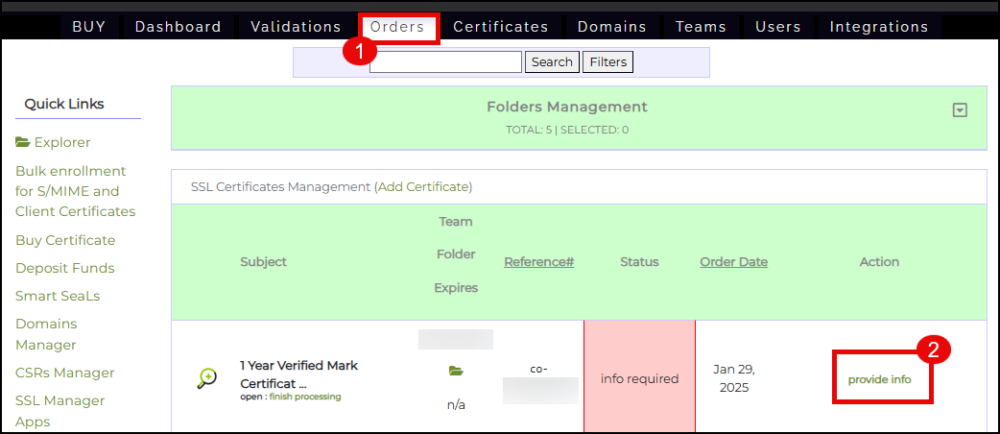
- Login to your SSL.com account. Click the Orders tab. Locate your order and click the provide info link.

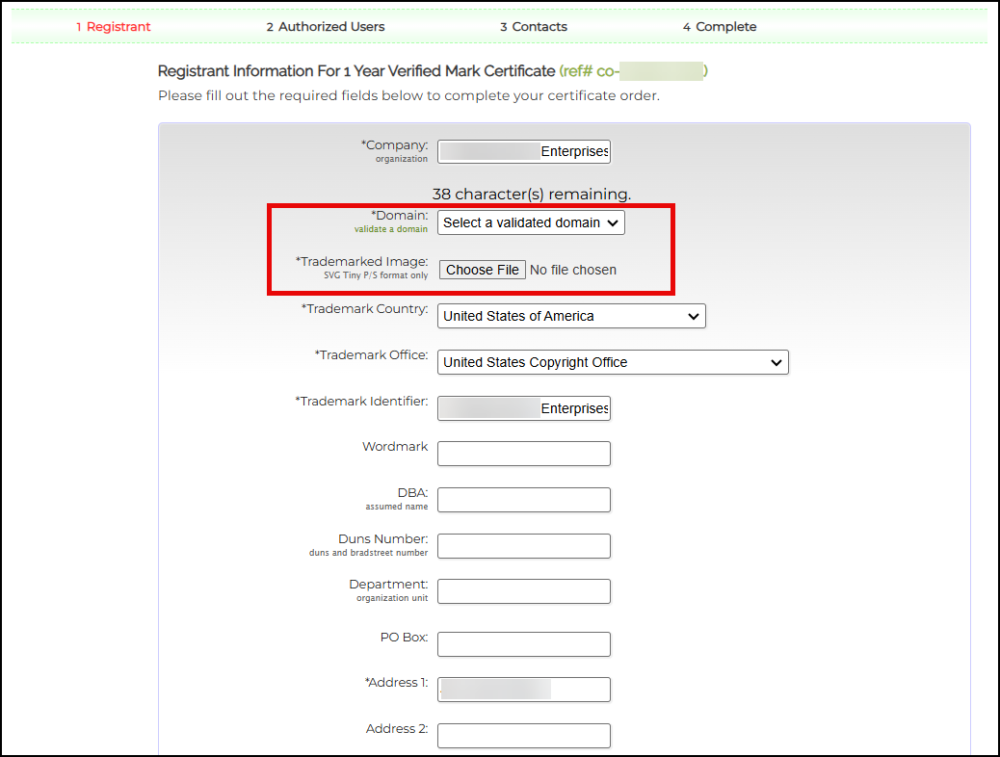
- Place all the required information for your company. On the Domain field, click the drop down arrow and select the domain you have previously validated. On the Trademarked Image field, upload your company logo that is formatted as SVG Tiny-PS. Take note that the maximum file size is 30KB.

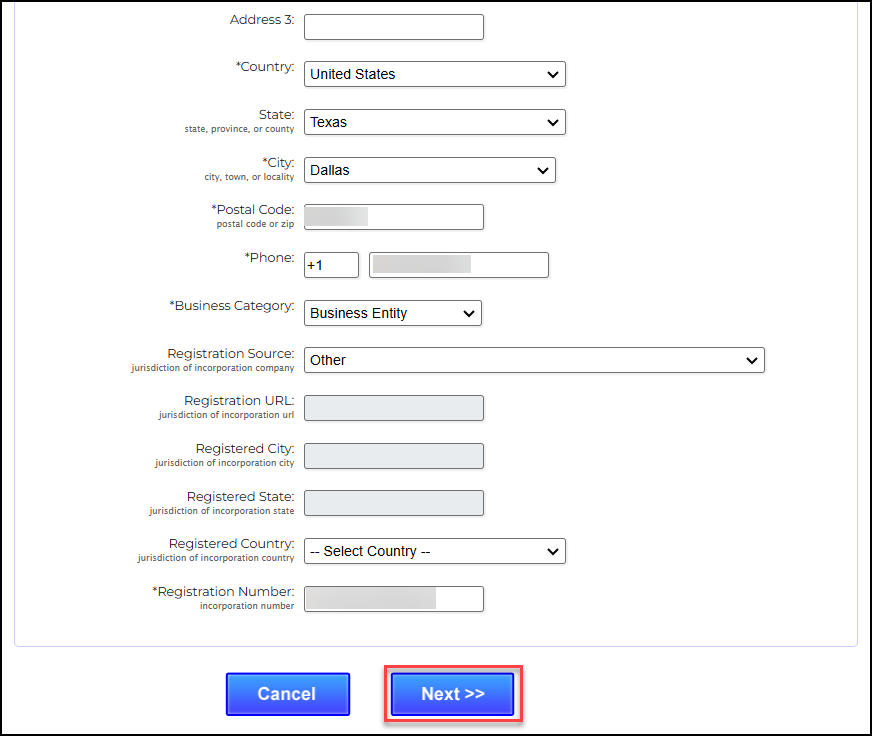
- After filling out all the required fields, click the Next>> button.

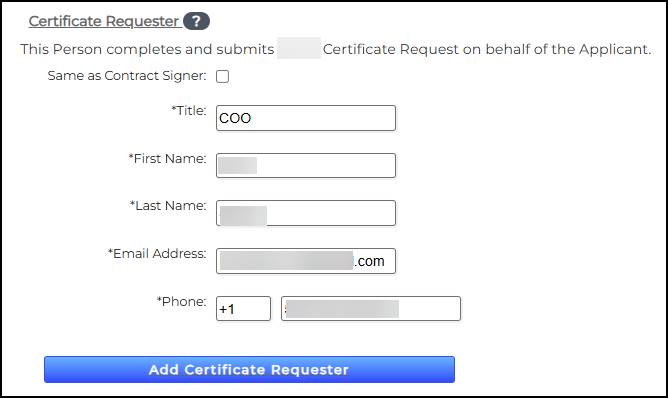
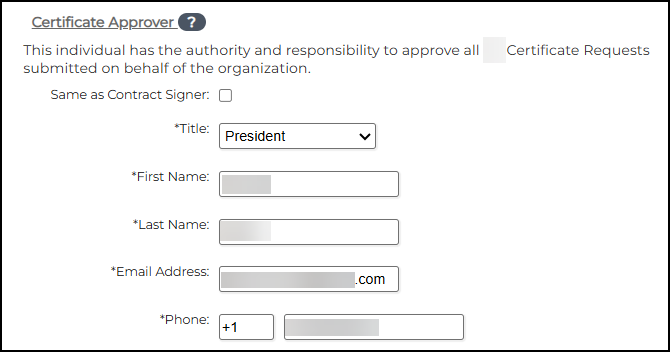
Fill Out the Fields for Contract Signer, Contract Requester, and Certificate Approver
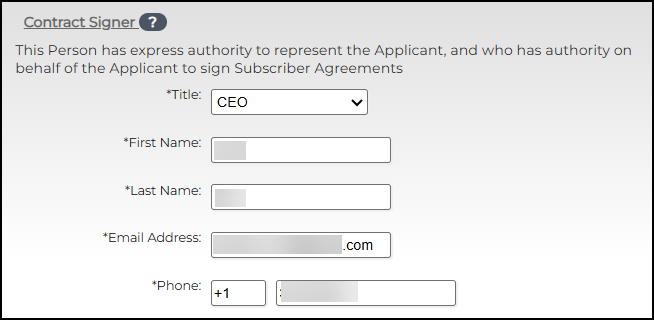
Fill in the name of the individual(s) with authority to sign contracts for your organization. This must be an Officer of the Organization, such as CEO, President, Corporate Secretary, Treasurer, Vice-President, COO, CIO, CFO, CSO, Managing Member, Director, or Department Head, etc. The Contract Signer will be considered to hold all roles, but you may also add other individuals to specific roles.- Contract Signer – This Person has express authority to represent the Applicant, and who has authority on behalf of the Applicant to sign Subscriber Agreements

- Certificate Requester – This Person completes and submits a Certificate Request on behalf of the Applicant. If this person is the same as the Contract Signer, check the box provided.

- Certificate Approver – This individual has the authority and responsibility to approve all Certificate Requests submitted on behalf of the organization. If this person is the same as the Contract Signer, check the box provided.

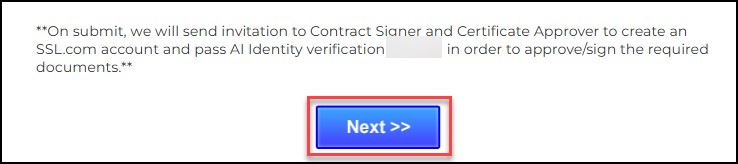
- Click the Next>> button

Add Contacts
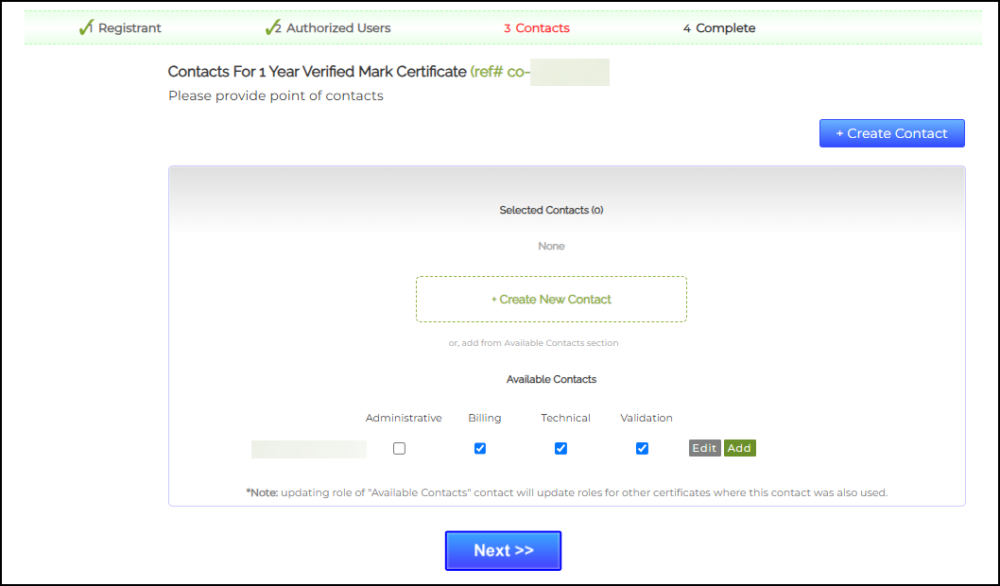
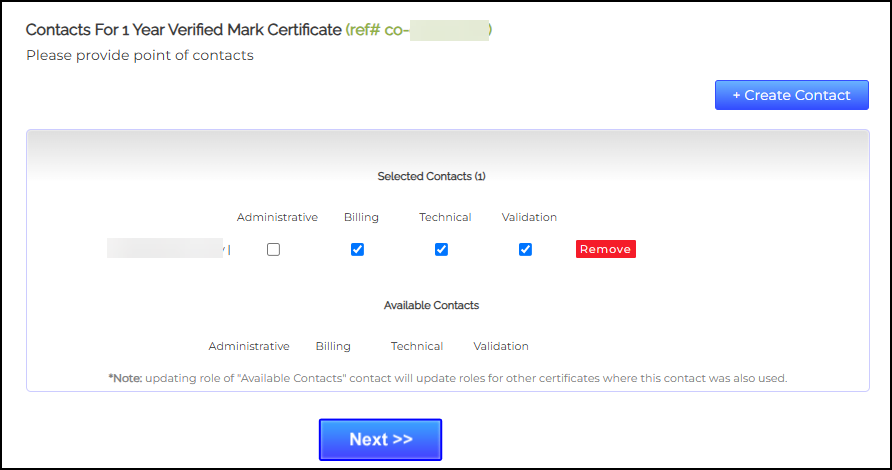
- Provide contact persons in your organization who can provide further requirements to SSL.com’s validation team. Check all the appropriate boxes regarding the role of the person. You can also click the +Create New Contact button to add additional contact persons if necessary. Afterwards, click the Next >> button.

- Finalize your list of selected contacts. Upon confirmation, click the Next>> button.

- Face-to-Face Verification Procedure
SSL.com partners with reputable third-party AI identity verification providers. Together with a manual review by SSL.com’s validation team, they facilitate secure Face-to-Face (F2F) identity verification for the Designated Individual (such as the Contract Signer or Certificate Approver).
Step 6 – Upload Your Mark Certificate to Your Web Server
For the issuance of your Mark Certificate, you will receive a .pem file containing your certificate. If you inspect the file, it will follow a standard PEM format, beginning with —–BEGIN CERTIFICATE—– and ending with —–END CERTIFICATE—–. To complete the deployment, upload this .pem file to your public web server. Make a note of the certificate’s URL, as it will be required for the next step in the BIMI setup process.Note: For Prior Use Mark Certificates only, you have the option to have SSL.com host your logo for you. Make sure you have the PEM-encoded certificate chain notepad file if you want this hosting option.
To send a request, email support@ssl.com and ask for the updated BIMI DNS text.
Once hosted, we’ll send you the links for the SVG and PEM files, which have to be added to your DNS records.
Step 7 – Configuring Your BIMI TXT Record
The next step in enabling BIMI for your domain is to create and add a BIMI TXT record to your DNS settings through your hosting provider. Start by generating your BIMI record. You’ll need the location of the PEM certificate file you saved earlier, along with the URL of your SVG logo. Format the record as follows:v=BIMI1;l=https://images.yourdomain.com/brand/bimi-logo.svg;a=https://images.yourdomain.com/brand/certificate.pem
Once your record is ready, add it as a DNS TXT entry through your domain provider’s management portal. While the exact process may vary by provider, the key details you’ll enter include:
| Field | Value | Description |
| Type | TXT | Specifies the DNS record type |
| Host | default._bimi.yourdomain.com | Prefix “default._bimi” followed by your domain name |
| Value | v=BIMI1;l=https://images.yourdomain.com/brand/bimilogo.svg;a=https://images.yourdomain.com/ brand/certificate.pem | Your BIMI TXT record |
| TTL | 1 hour (3600 seconds) | Recommended time-to-live (TTL) setting |