


With SSL.com’s eSigner service, you can use your SSL.com user credentials to sign code from any internet-connected device. This guide will show you how to enroll a OV, IV, or EV Code Signing certificate order in eSigner and sign code with the eSigner Express web app, or from the command line with CodeSignTool or SSL.com’s CSC-compliant code signing API.
eSigner can be used for Microsoft Authenticode and Java code signing, and can sign MSI installers and various types of scripts. A complete list of supported file types is available at the end of this guide.
To check all the file types that eSigner supports for enterprise code signing and document signing, head over to this article.
For instructions on how to automate EV Code Signing using signtool.exe or certutil.exe please review this how-to. eSigner also supports CI/CD integration for full automation of signings using CircleCI, Github Actions, Gitlab CI, Jenkins and Travis.
Enroll in eSigner
First, you’ll need to enroll an OV, IV, or EV Code Signing certificate order with eSigner.
- Navigate to an issued Code Signing order in your SSL.com account. Note that the order is labeled
eSigner Ready.

- Click one of the download links.

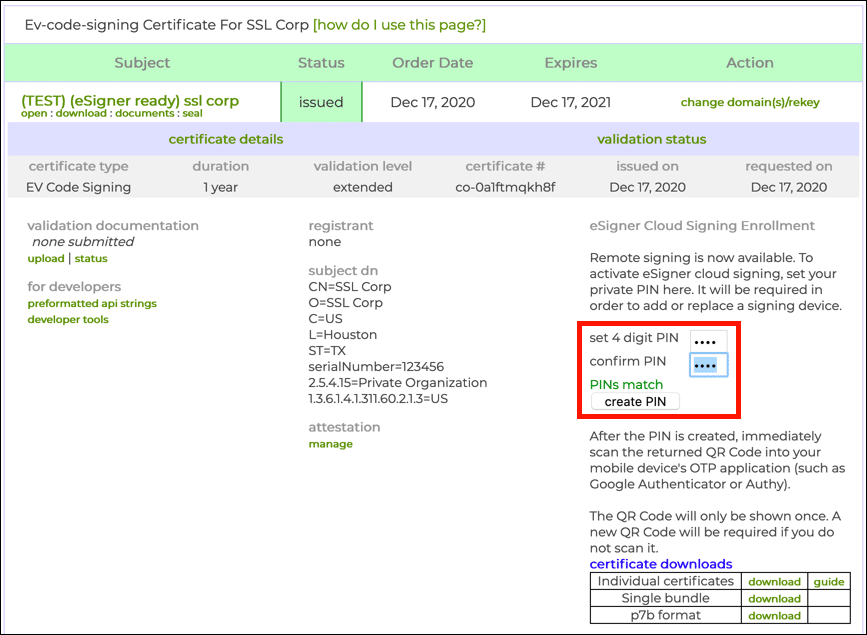
- Create and confirm a 4-digit PIN and click the create PIN button.
- Your certificate will be generated, and after a few moments a QR code will appear above the certificate downloads table.
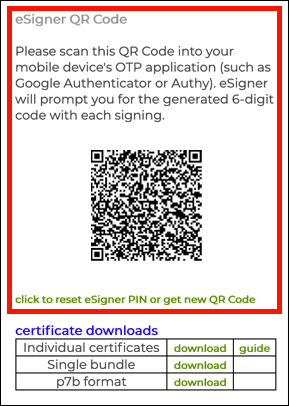
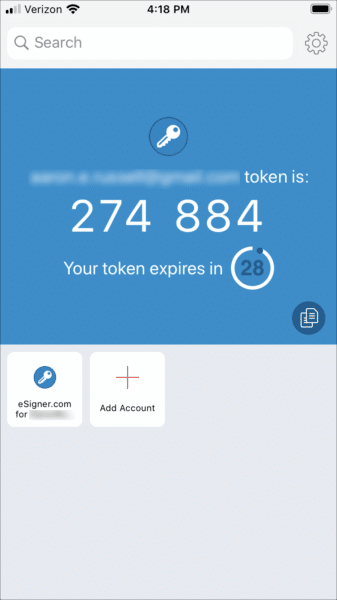
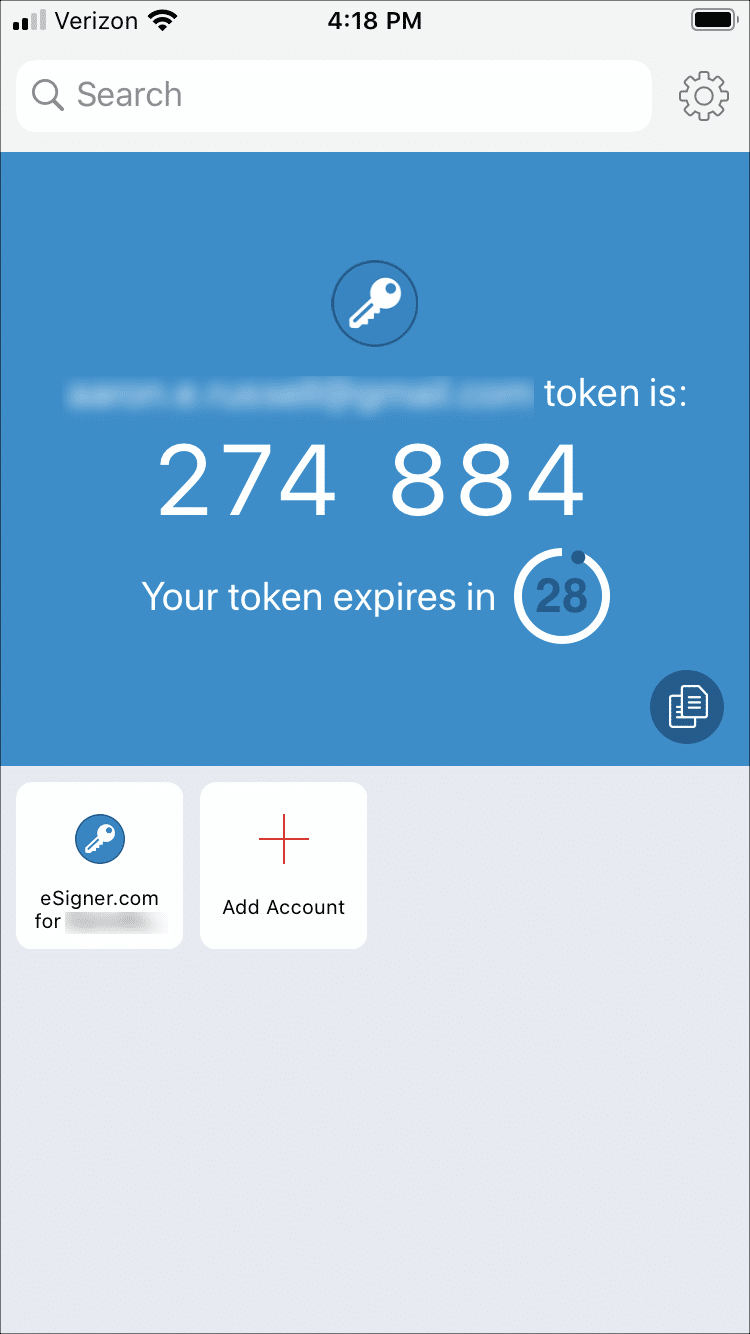
- Scan the QR code into a 2-factor authentication app on your mobile device, such as Google Authenticator or Authy. The app will provide you with one-time passwords (OTPs) for use when signing. Each OTP is valid for 30 seconds.
Supported File Types for eSigner Code Signing
| Microsoft Authenticode File Types |
|
|---|---|
| MSI File Types |
|
| PowerShell Scripts File Types |
|
| Other Scripts File Types |
|
| Java File Types |
|