

- Understand the validation process
- Identify where your order is delayed
- Resolve common validation issues
- Speed up certificate issuance
- Prevent future delays
Step 1: Check Your Validation Status
The easiest way to check your validation progress is through your SSL.com customer portal.How to Check Your Order Status
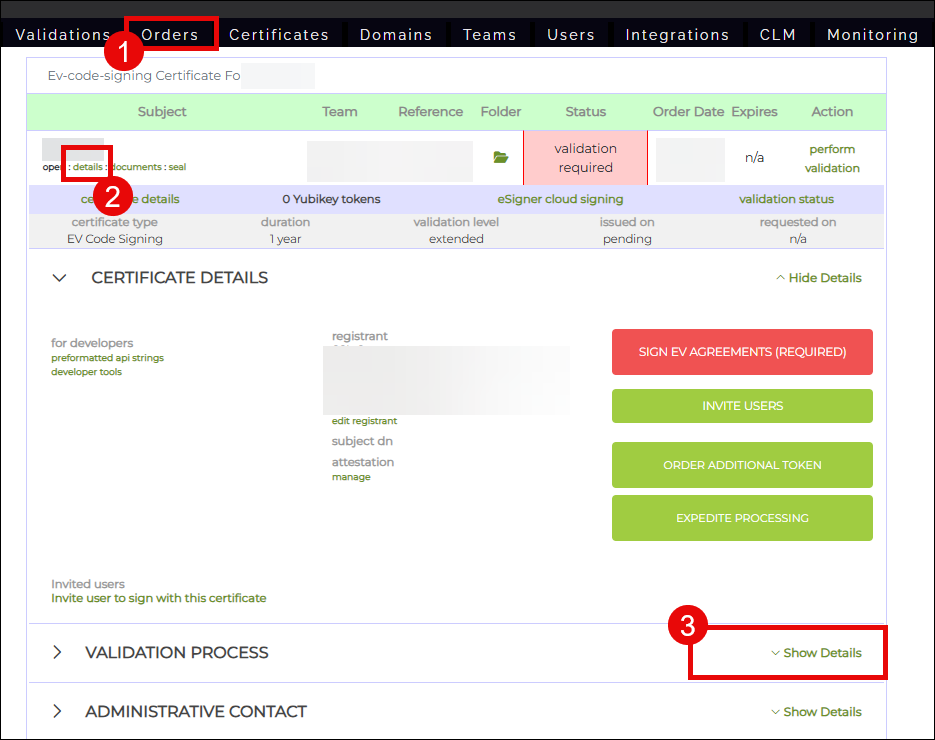
- Log in to your SSL.com account.
- Click the Orders tab.
- Locate your order.
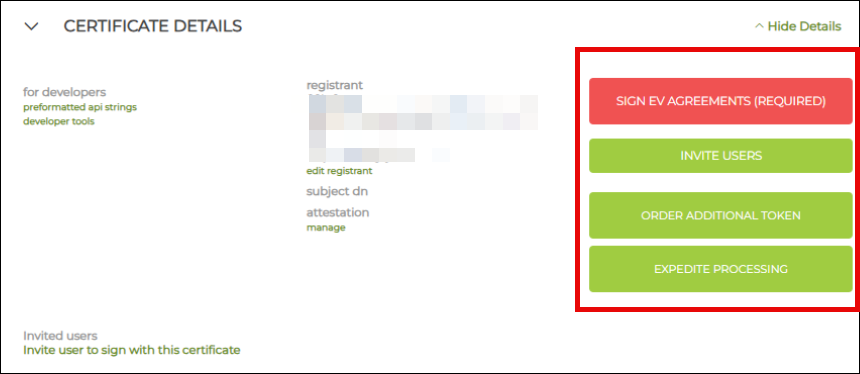
- Click Details.
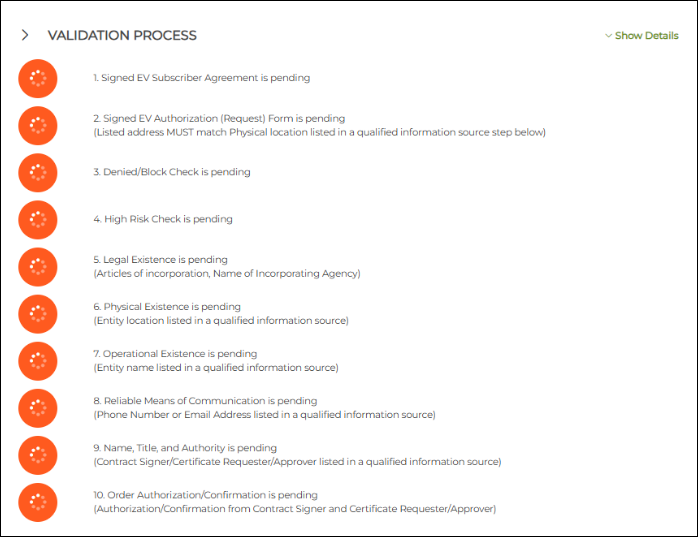
- Navigate to the VALIDATION PROCESS section.
- Click Show Details.



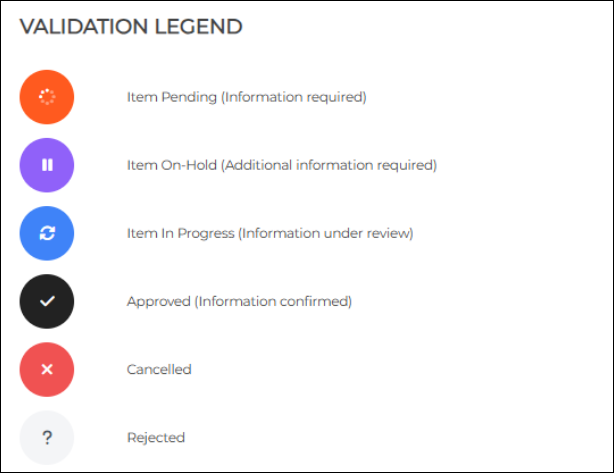
- Item pending (information required)
- Item On-Hold (Additional information required)
- Item In Progress (Information under review)
- Approved (Information confirmed)
- Cancelled
- Rejected

Step 2: Understand Your Validation Requirements
Depending on the certificate type, you may need to complete one or more of the following validation requirements:- Registrant information submission
- Identity validation
- Organization validation
- Extended Validation (EV) documentation
- Phone callback verification
Automated Validation Options
Automated Callback Verification
Instead of scheduling a call with an SSL.com validation agent, you can complete phone verification through:- SMS verification codes
- Automated AI-assisted phone calls
Automated Identity Validation
SSL.com provides a secure, remote, and user-friendly identity verification process. Using your computer or smartphone along with SSL.com’s AI-powered verification software, you can complete identity validation without manually uploading documents. Identity validation is required for certificates that include Individual Validation (IV).Online EV Document Submission
For Extended Validation (EV) certificates, SSL.com allows you to complete and sign the following forms online:- EV Request Form
- EV Subscriber Agreement
Submit Registrant and/or Company Information
Entering registrant information is the first required step after placing your order.Required Information
You may need to provide:- Organization or individual name
- Verified phone number
- Address information
- Company verification information
Using a D-U-N-S Number to Speed Up Validation
You may provide your company’s Dun & Bradstreet (D-U-N-S) number to help accelerate validation. A D-U-N-S listing typically includes:- Legal company name
- Verified phone number
- Business address
If You Do Not Have a D-U-N-S Number
If you do not have a DUNS listing, no worries. We use a lot of online QIIS which you can find in this page: Acceptable Business Listings for Validation Acceptable sources may include:- Government business registries
- Business directories
- Other qualified public databases
Submit EV Documents (EV Certificates Only)
Extended Validation (EV) certificates require additional documentation.Online Submission (Recommended)
The online method is faster and more convenient. You can find the complete guide on how to this here: Online Submission for the EV Request Form and EV Subscriber Agreement (for EV certificates only) This process allows:- Online signing
- Automated identity validation
- Faster review times
Manual Submission
The manual method can take longer. Manual Submission for the EV Request Form and EV Subscriber Agreement (for EV certificates only) You will need to upload:- Signed EV Request Form
- Signed EV Subscriber Agreement
- Company verification documents
Complete Automated Identity Validation
Identity validation is required for all certificates that include Individual Validation (IV). SSL.com streamlines identity verification through a secure, remote, and AI-assisted process.Learn more: How to do Automated Identity Validation with SSL.com
Requirements
You will need:- A government-issued ID
- A smartphone or webcam
- A selfie photo
Important Tips
- Ensure your ID is current and not expired.
- Use good lighting.
- Make sure all text is clearly readable.
- Hold the ID closely to your face during selfie verification.
Complete Phone Callback Verification
Phone callback verification is required for many OV and EV certificates. To complete callback validation successfully, you must provide a verified phone number listed in a Qualified Independent Information Source (QIIS).Automated Callback (Recommended)
SSL.com strongly recommends using the automated callback option. Available methods include:- SMS code verification
- Automated AI-assisted phone call
Manual Callback
If automated callback does not work, you may request a manual callback with an SSL.com validation agent. Availability depends on scheduling.How to Complete Callback Verification
For step-by-step instructions, refer to the guide: How to Perform Automated Callback.Common Callback Issues
Not Receiving the Call or SMS
Possible solutions:- Verify the phone number for typos.
- Ensure your phone has signal.
- Try SMS instead of voice call.
- Check spam filters and voicemail.
- Wait 30 minutes before retrying.
- Request a manual callback.
Calls Going Directly to Voicemail
Possible solutions:- Disable call forwarding.
- Turn off Do Not Disturb mode.
- Use SMS verification instead.
- Schedule the callback for a better time.
Automated Calls Blocked by Company Phone Systems
Possible solutions:- Provide a direct-dial number.
- Notify reception staff.
- Use a mobile number.
- Request a manual callback.
Verification Code Rejected
Possible solutions:- Re-enter the code carefully.
- Remove spaces or dashes.
- Enter the code within 5 minutes.
- Request a new code.
Complete Domain Control Validation (DCV)
SSL/TLS certificates require Domain Control Validation (DCV) to verify domain ownership. If one DCV method is unavailable, you may use another. Refer to this SSL.com guide for a complete guide to perform DCV: What Are The Requirements for SSL.com SSL/TLS Certificate Domain Validation? Email Validation SSL.com sends a validation email to an approved address such as:- admin@yourdomain.com
- administrator@yourdomain.com
- hostmaster@yourdomain.com
- Open the email.
- Click the validation link.
- Enter the validation code.
Step 3: Resolve “Documents Under Review” Delays
Cause 1: SSL.com Requested Additional Information Check your inbox and spam folder for messages from:- validation@ssl.com
- Clarification for name discrepancies
- Address mismatch explanations
- Additional company verification
- Translation of non-English documents
- Updated public records
- Replying to the validation email
- Uploading additional documents
- Contacting validation@SSL.com
- Incorrect D-U-N-S number
- Company name mismatch
- Broken verification links
- Wrong jurisdiction
- Verify the D-U-N-S number.
- Confirm company names match exactly.
- Submit updated verification links.
- Upload supporting company documents if necessary.
- Articles of Incorporation
- Business licenses
- Certificates of Good Standing
- Complete identity verification
- Sign documents
- Approve forms
- Contract Signer
- Certificate Approver
Step 4: Speed Up Validation and Issuance
Use Expedited Processing (When Eligible)
SSL.com offers:- Express Processing
- Expedited Processing
- Expedited + Same Day options
- Priority review
- Faster issuance
- Accelerated shipping
Use Bulk Ordering (When Eligible)
SSL.com supports bulk ordering for certain certificate types, including:- NAESB certificates
- Personal ID + Organization S/MIME certificates
- Faster deployment
- Centralized management
- Simplified renewals
- Simplified revocations
- Reduced identity verification overhead
Step 5: Monitor Your Email for Updates
SSL.com sends important validation instructions and requests by email. Always monitor:- Inbox
- Spam/junk folder
- SSL.com order notes
Common Validation Team Requests
- Clarification of name differences
- Address mismatch explanations
- Additional company documents
- Updated public records
- Translation requests
How to Respond
You may respond by:- Replying directly to the validation email
- Uploading additional documentation
- Contacting validation@SSL.com with your order number
Step 6: When to Contact SSL.com Support
Contact Support Immediately If:
- Validation exceeds expected timelines
- You receive confusing validation requests
- Technical issues block progress
- Callback repeatedly fails
- You need urgent issuance
- Order information contains errors
Recommended Support Contacts
General Support- Support@SSL.com
- validation@ssl.com
- billing@ssl.com
- sales@ssl.com
Information to Include When Contacting Support
Provide:- Order number
- Certificate type
- Current validation stage
- Time elapsed
- Troubleshooting steps already attempted
- Any error messages received
What Support Can Help With
Support may:- Investigate delays
- Clarify requests
- Correct order information
- Prioritize urgent orders
- Provide alternative validation methods
- Troubleshoot technical issues
- Skip required validation steps
- Accept expired documents
- Issue certificates with incomplete information
Step 7: Prevent Future Validation Delays
Before Ordering
For All Certificate Types- Ensure IDs are current
- Gather all required documents
- Confirm phone accessibility
- Avoid last-minute orders
- Verify public business listings are accurate
- Obtain a D-U-N-S number if possible
- Update outdated registry information
- Prepare company verification links
- Identify designated contacts early
- Ensure contacts are available
- Prepare company documentation in advance
- Consider expedited processing if needed
During Ordering
- Match official records exactly
- Double-check spelling and formatting
- Save order confirmation emails
Immediately After Ordering
Complete all required steps the same day whenever possible:- Submit information
- Upload documents
- Add contacts
- Monitor email
- Complete callback immediately once available
Quick Validation Troubleshooting Checklist
Use this checklist to quickly identify and resolve common delays.- Check your current validation stage
- Calculate business days only (exclude weekends and holidays)
- Check inbox and spam folder for validation requests
- Upload missing or corrected documents
- Complete callback verification immediately if available
- Verify company verification sources are accurate
- Respond promptly to clarification requests
- Contact support if delays exceed normal timelines
- Review all order information for accuracy
- Monitor order notes regularly
|
Issue |
Check/Action |
|---|---|
|
DV email missing |
Check spam folder; try admin@, administrator@, webmaster@, hostmaster@, or postmaster@ addresses; or switch to HTTP/DNS method |
|
HTTP file validation fails |
Verify file is accessible at /.well-known/pki-validation/ path; test over HTTP port 80; check file permissions |
|
DNS validation fails |
Wait up to 48 hours for DNS propagation; confirm CNAME/TXT record format is correct; verify no typos |
|
Organization verification rejected |
Legal name must match business registry exactly; provide D-U-N-S number or incorporation documents |
|
Callback not connecting |
Ensure phone number is publicly listed; request specific callback time window; keep authorized contact available |
|
Validation pending >48 hours |
Contact support@ssl.com immediately for escalation |
Summary
Most SSL.com validation delays are caused by incomplete submissions, pending callback verification, missing documentation, or unanswered clarification requests. To avoid delays:- Complete all validation steps promptly
- Monitor your email regularly
- Use automated validation options whenever possible
- Ensure all submitted information matches official records exactly
- Respond quickly to SSL.com validation requests
|
Cause |
Typical Delay |
How to Avoid |
|---|---|---|
|
Information mismatch |
1–3 days |
Verify legal name matches registry exactly |
|
Document issues |
1–2 days |
Submit current, clear, legible documents |
|
Callback issues |
1–5 days |
Use publicly listed business phone; be available |
|
DNS propagation |
Up to 48 hours |
Use email DCV for fastest results |
|
Complex structures |
3–7 days |
Allow extra time for international or multi-DBA orgs |