A team rarely has just one person who needs to sign code or documents. SSL.com lets you share an
EV code signing or organization validated (OV)
document signing certificate with other members of your team for use in the
eSigner cloud signing service, instead of buying and managing a separate certificate for each signer.
Before you start:
- The team member doing the sharing needs an eSigner-enrolled EV code signing or OV document signing certificate.
- The team member receiving access needs a role of
account_admin or owner on the account. See Your SSL.com Account: Users for setting user roles.
- If the certificate is already enrolled in eSigner, sharing it enrolls the new member in that same certificate. If it is not yet eSigner-enrolled (for example, a certificate installed on a YubiKey), SSL.com issues a new certificate with the same
SubjectDN and expiration for the new member.
- Individual validated (IV) document signing certificates are scoped to one person and cannot be team-shared.
Step 1: Share the order URL with your teammate
If you have already enrolled a certificate in eSigner and want to share it with another team member, start here.
- Log into your SSL.com account and select the team your order is scoped to.
- Go to the Orders tab and find the eSigner-enrolled certificate you want to share.
- Click the subject name, the magnifying glass icon, or open to view the order’s details.
- Click view certificate details.
- Copy the URL from your browser’s address bar and send it to the teammate you are sharing the certificate with.
Step 2: Your teammate creates an eSigner PIN
These steps are for the team member who received the order URL in Step 1.
- Paste the shared order URL into your browser’s address bar.
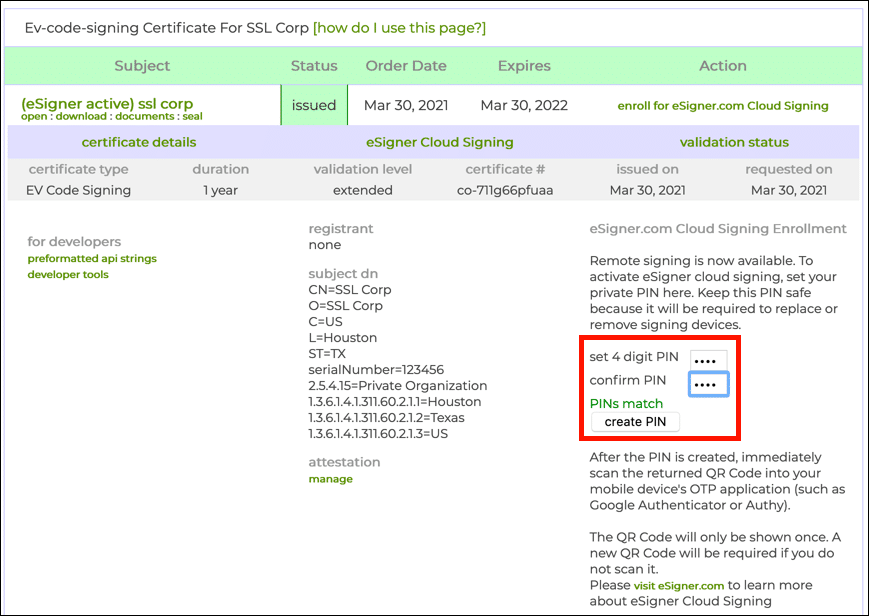
- Create and confirm your eSigner PIN, then select create PIN. Need to reset an existing PIN instead? See Viewing or Resetting Your eSigner QR Code and PIN.
- A QR code appears. It will not be visible again once you reload the page, so scan it now; if you need it later, see the same reset guide linked above.
- Scan the code into a two-factor authentication app on your mobile device, such as Google Authenticator or Authy. The app generates a one-time password (OTP), valid for 30 seconds, each time you sign.
- You’re ready to sign code or documents with the shared eSigner certificate.
Questions about team sharing or eSigner? Email
Support@SSL.com, call 1-877-SSL-SECURE, or use the chat link at the bottom right of this page. You can also check our
knowledgebase for more answers.